Mac Mail Setup
1) Open Mac Mail
2) From the File menu option, select Add Account
3) Put in your name as you want it to appear in the Full Name Box
4) Put in your email address
5) Put in the password that was to you
6) Click Continue 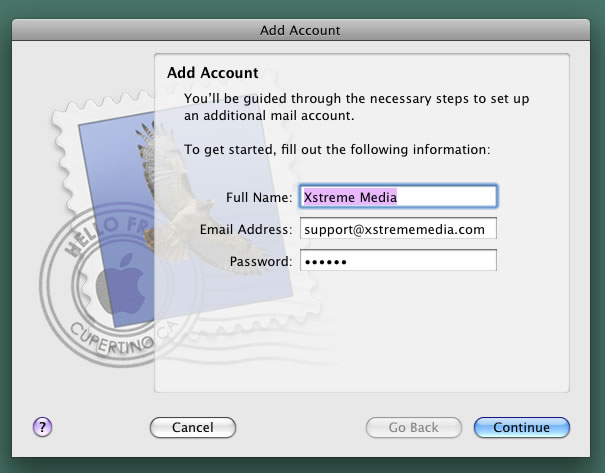
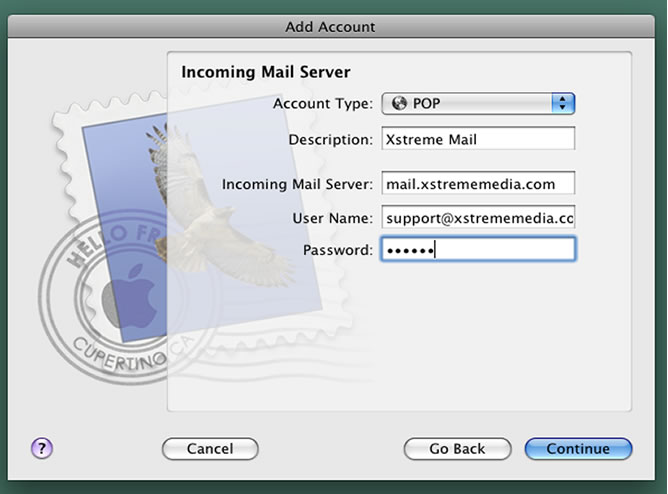
7) In Description put an identifying name (can be anything)
8)
Incoming Mail Server: mail.yourdomainname.com (replace yourdomainname with your web site name - Ex. mail.xstrememedia.com)
9) User Name: your full email address
10) Password: the password you were assigned
11) Click Continue
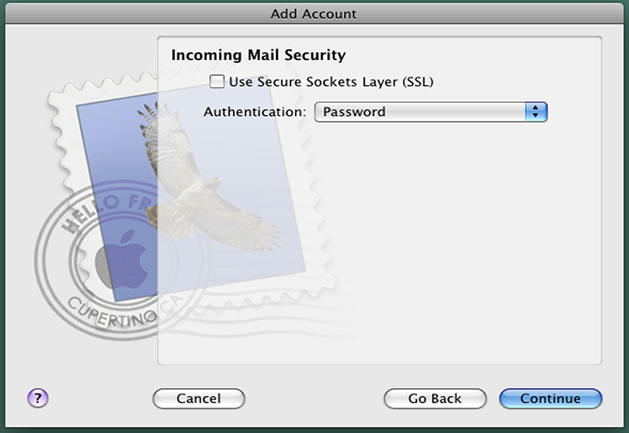
12) Uncheck the User Secure Sockets Layer (ssl) box
13) Leave Authentication set to password
14) Click Continue
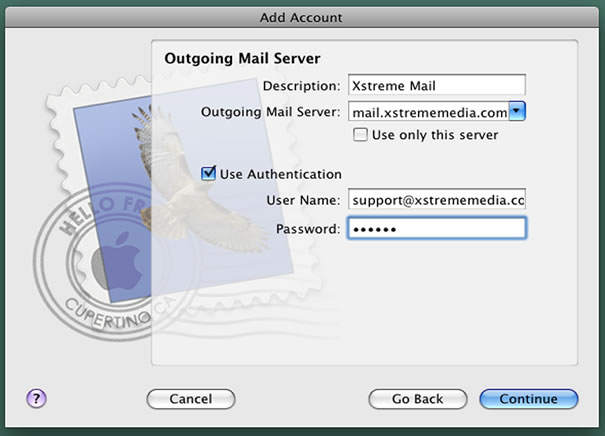
15) Decription can be anything to identify the account
16) Outgoing Mail Server: mail.yourdomainname.com (replace yourdomainname with your web site name - Ex. mail.xstrememedia.com)
17) Uncheck User only this server
18) Check Use Authentication
19) User Name: your full email address
20) Password: the password you were assigned
21) Click Continue
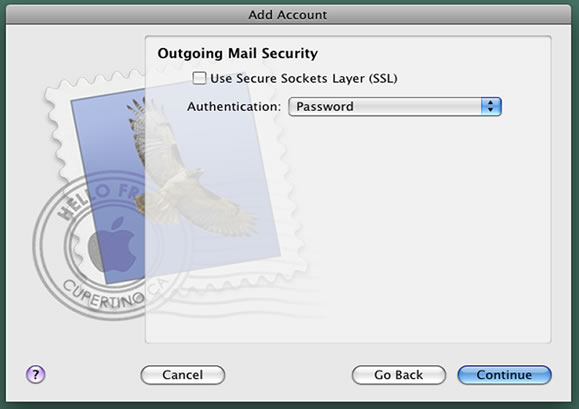
22) Uncheck the Use Socket Layers (ssl) box
23) Leave Authentication set to Password
24) Click Continue
25) Verify information is correct. Click Create
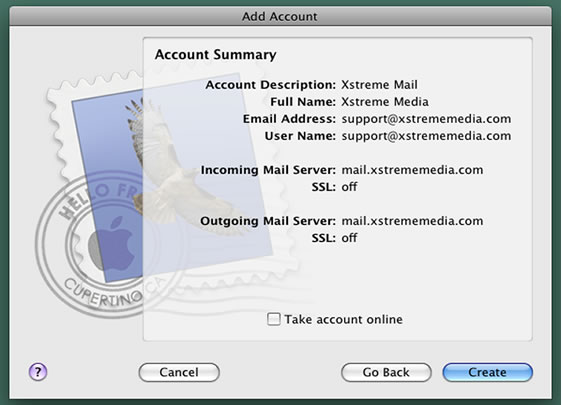
You are now ready to send and receive email
using Mac Mail.
|
