|

How to Set Up Outlook Express XP E-Mail Accounts
Start Outlook Express
There are many ways to start Outlook Express, but here's a sure-fire way
to find and start it.
1. |
Click the Start button. |
2. |
Point to All Programs. |
3. |
Click Outlook Express.
These first three steps are shown in the image below:
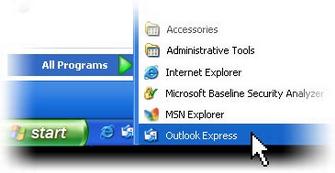
Opening Outlook Express from the Start
menu
|
4. |
If asked whether you'd like to open this particular account automatically
every time you start Outlook Express, click Yes (if you do)
or No (if you don't).
If you don't want to be asked this question again, click to check
the Always perform this check... box. |
5. |
Check When Outlook Express starts, go directly to my Inbox.
Outlook Express directs all incoming mail to the Inbox, so it
makes sense to bypass this opening page.
If you don't see the list of folders and contacts on the left,
click Layout on the View menu. Click Contacts and Folder
List to check them, and then click OK.
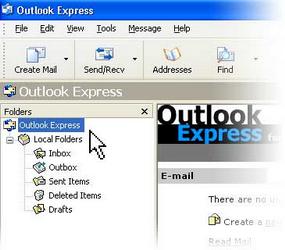
Outlook Express list of folders
 Quick start. You'll notice that when you use Outlook
Express regularly, Windows XP will put the Outlook Express icon
on the Start menu (along with other programs you've used recently).
In that case, just click the Outlook Express icon
in the Start menu to open the program. Quick start. You'll notice that when you use Outlook
Express regularly, Windows XP will put the Outlook Express icon
on the Start menu (along with other programs you've used recently).
In that case, just click the Outlook Express icon
in the Start menu to open the program.
|
Set Up an Outlook Express E-Mail Account
The Internet Connection Wizard makes short work of setting up your online
mailbox by walking you through each step for every e-mail account you set
up.
1. |
Before you get going, make sure you know your email address along
with the following information. (You may need to contact your ISP,
Xstreme Media, to get it.)
First, information about the e-mail servers:
| • |
The type of e-mail server Xstreme Meida
uses: POP3
|
| • |
The name of the incoming e-mail server:
mail.yourdomain.com |
| • |
The name of
the outgoing e-mail server: mail.yourdomain.com |
Second, information about your account:
| • |
Your account name (your e-mail address)
and password
(For some solid advice about making a secure password,
read the Create strong passwords article.) |
|
2. |
Start Outlook Express, and on the Tools menu, click Accounts.
If the Internet Connection Wizard starts up automatically, skip
ahead to step 4. |
3. |
Click Add, and then click Mail to open the Internet
Connection Wizard.
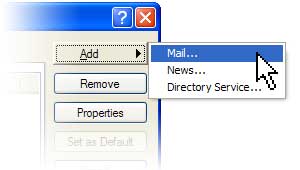
Mail option from the Add button
|
4. |
On the Your Name page of the wizard, type your name as
you want it to appear to everyone who gets e-mail from you, and then
click Next (Ex. John Doe).
Most people use their full name, but you can use any name—even
a nickname—that people will recognize. |
5. |
On the Internet Explorer Address page, type your e-mail
address (Ex. john@abccompany.com), and then click Next. |
6. |
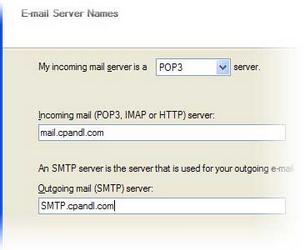
On the E-mail Server Names page, fill in the following:
Incoming mail server is a POP3 server.
Incoming mail (POP3) server: mail.yourdomain.com
(replace "yourdomain" with your web site name. Ex.
mail.abccompany.com)
Outgoing mail (SMTP) server: mail.yourdomain.com
(replace "yourdomain" with your web site name. Ex.
mail.abccompany.com)
Note: If you chose HTTP as your incoming e-mail server—as
for a Hotmail or MSN account—this wizard page changes slightly
so you can identify your HTTP mail service provider. |
7. |
On the Internet Mail Logon page, type your account name
and password.
Account Name: always your e-mail address
(Ex. john@abccompany.com)
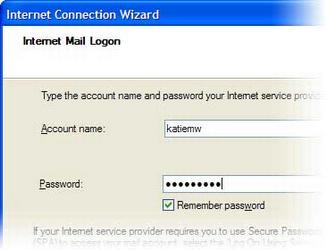
Internet Connection Wizard's Internet
Mail Logon
Note: If you're concerned about break-ins to your e-mail,
click to clear the check in the Remember Password box. You'll
then be prompted for the password each time you send or retrieve
mail. |
8. |
Click Next, and then click Finish.
You're ready to send your first e-mail!
Unsure if your new e-mail account is working? Send an e-mail
message to a friend. If they get the message, your account is ready
to roll! But if you run into problems setting up your account,
Outlook Express offers help. Search for troubleshooting topics
from Contents and Index on the Help menu. |
|