Outlook
Express 98 Setup
1) Open Outlook 98 or Express
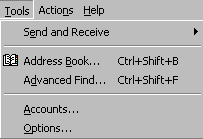
2) From the drop-down menus, select Tools-Accounts
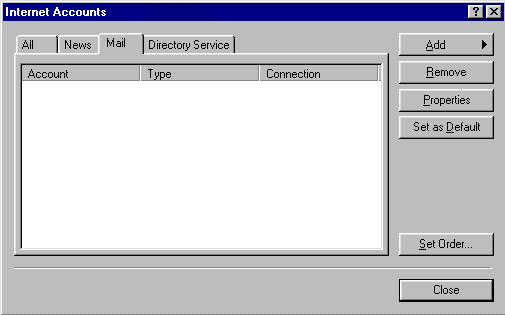
3) Click the Mail tab, then on the Add
button and select Mail
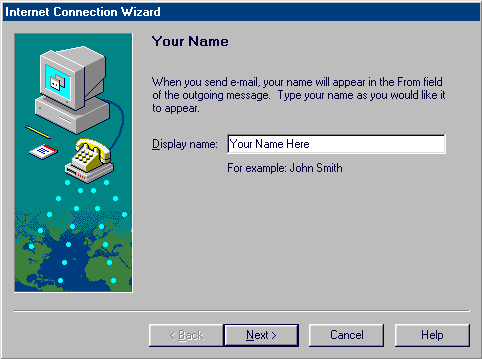
4) In the Display name box enter your
name as you wish it to appear at the recipient's end
5) Click Next
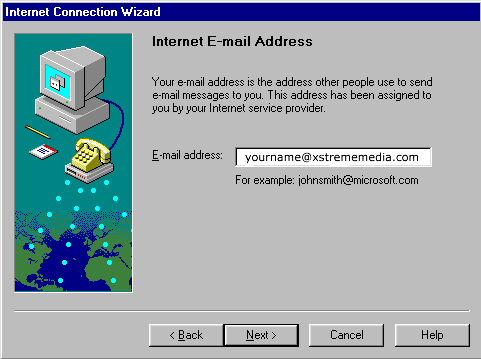
6) In the Email address box enter your email address (ex: john@abccompany.com)
7) Click Next
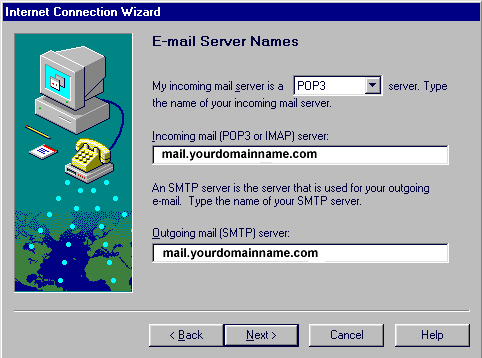
8) Enter the mail server information as shown below, where you replace the
wording "yourdomainname" with your domain name (Ex. mail.abccompany.com).
9) Click Next
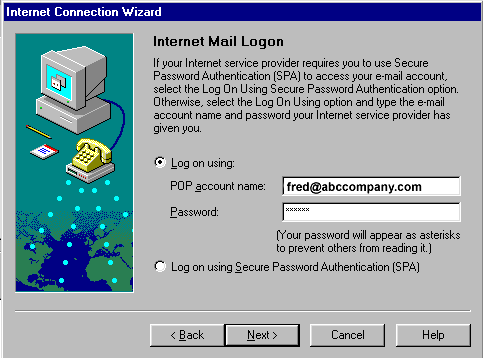
10) Make sure Logon using: is selected and enter the information as
shown below. Your POP account name will be your e-mail address. Note: your
password will echo as asterisks. Be sure you enter your password correctly.
Passwords are case-sensitive.
11) Select Next
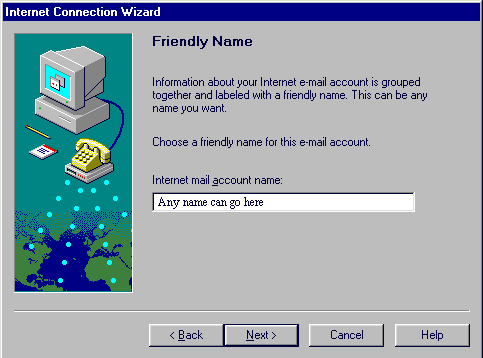
12) In the Internet mail account name box, enter a "friendly name" for your
account (Ex. john's mail).
Note: This can be anything you want. If
setting up multiple accounts you may want to give each account a slightly
different name, i.e. "Bob's mail ", "John's mail " etc.
13) Select Next
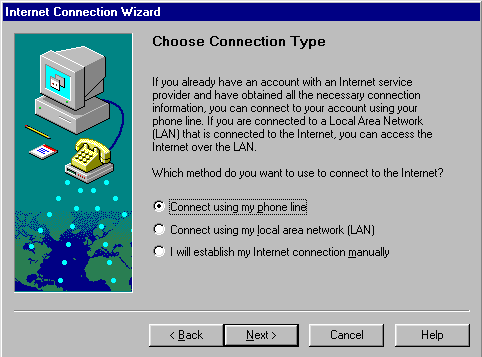
14) Select Connect using my phone line if you use dial-up to access
the internet. If you are on a network, you will select Connect using my local
area network (LAN).
15) Select Next
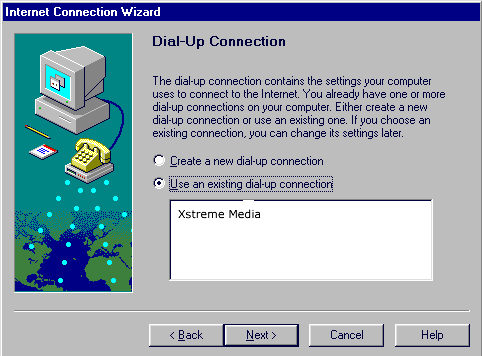
16) Select Use an existing dial up networking connection and make sure
the connection name for xstrememedia.com is selected. **NOTE - This is only
for dial-up users. Network LAN users will not complete this step.
16) Click Next
17) Click Finish to save your settings
You are now ready to send and receive email
using Outlook 98. For program function and features, consult your Outlook
98 "Help" files, or contact Microsoft Technical Support Online at http://www.microsoft.com/Support/
|
